> ## Documentation Index
> Fetch the complete documentation index at: https://fema-docs.estou.ai/llms.txt
> Use this file to discover all available pages before exploring further.
# FEMA Credentials
> Link your FEMA account to your Shopify store.
## Where to configure
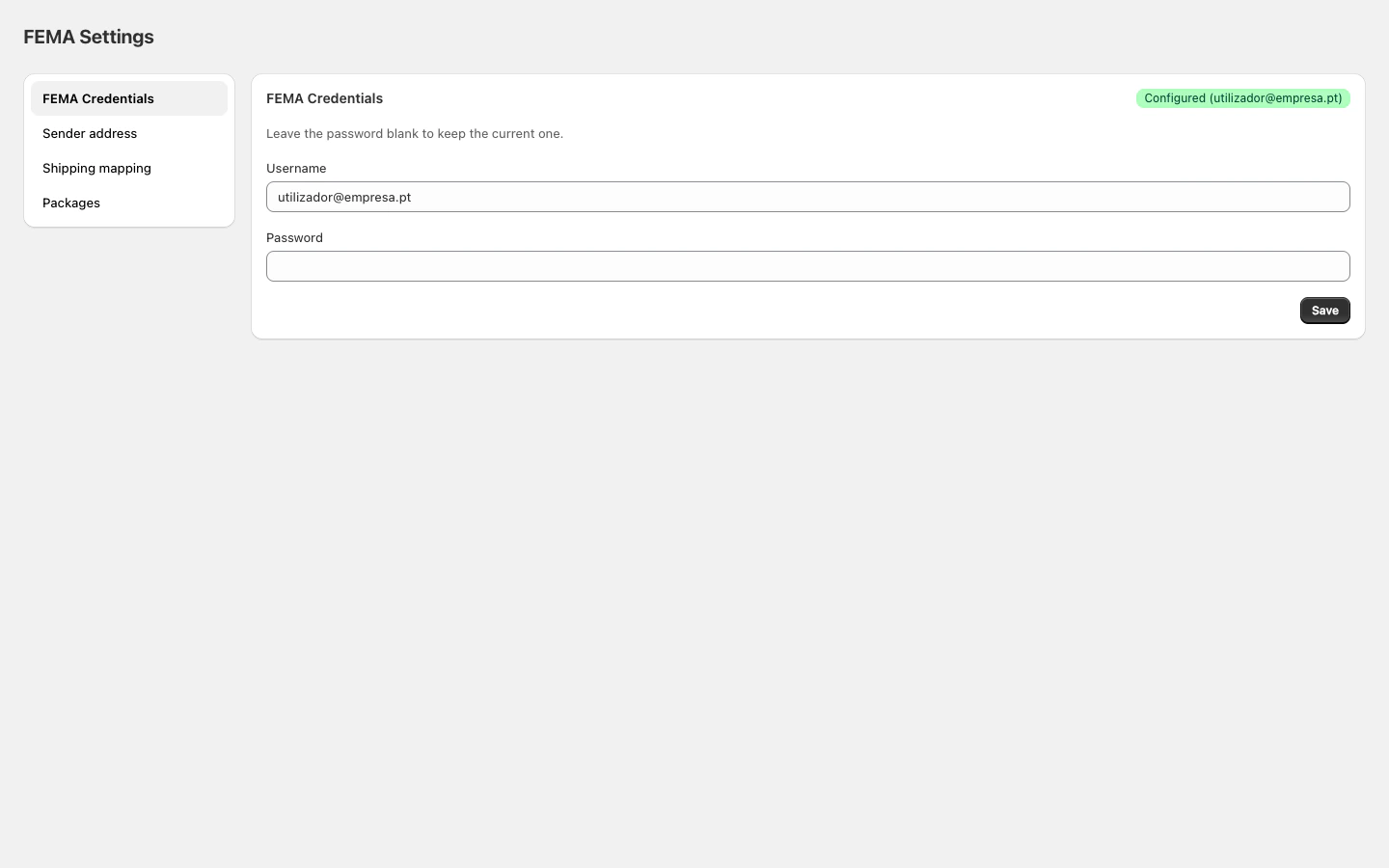
In Shopify Admin, open the FEMA app and click **FEMA Credentials** in the sidebar.
 ## Fields
| Field | Description |
| ------------ | -------------------------- |
| **Username** | Your FEMA account username |
| **Password** | Your FEMA account password |
The password is stored encrypted. You can leave it blank when saving if you only want to update the username. The existing password is kept.
## How to configure
1. Enter your **FEMA username**.
2. Enter your **password**.
3. Click **Save**.
The badge in the top-right corner of the tab shows the status:
* **Configured** (green): credentials saved successfully
* **Not configured** (yellow): no credentials entered yet
## Common issues
Verify the credentials are correct by logging into the FEMA portal directly. If you can log in but shipments fail, the credentials may be out of date. Save them again in the app.
Contact FEMA at [fema.pt](https://www.fema.pt) to get access to their shipping system.
## Fields
| Field | Description |
| ------------ | -------------------------- |
| **Username** | Your FEMA account username |
| **Password** | Your FEMA account password |
The password is stored encrypted. You can leave it blank when saving if you only want to update the username. The existing password is kept.
## How to configure
1. Enter your **FEMA username**.
2. Enter your **password**.
3. Click **Save**.
The badge in the top-right corner of the tab shows the status:
* **Configured** (green): credentials saved successfully
* **Not configured** (yellow): no credentials entered yet
## Common issues
Verify the credentials are correct by logging into the FEMA portal directly. If you can log in but shipments fail, the credentials may be out of date. Save them again in the app.
Contact FEMA at [fema.pt](https://www.fema.pt) to get access to their shipping system.