> ## Documentation Index
> Fetch the complete documentation index at: https://fema-docs.estou.ai/llms.txt
> Use this file to discover all available pages before exploring further.
# Shipping Mapping
> Link Shopify shipping methods to FEMA services and set the label format.
## Where to configure
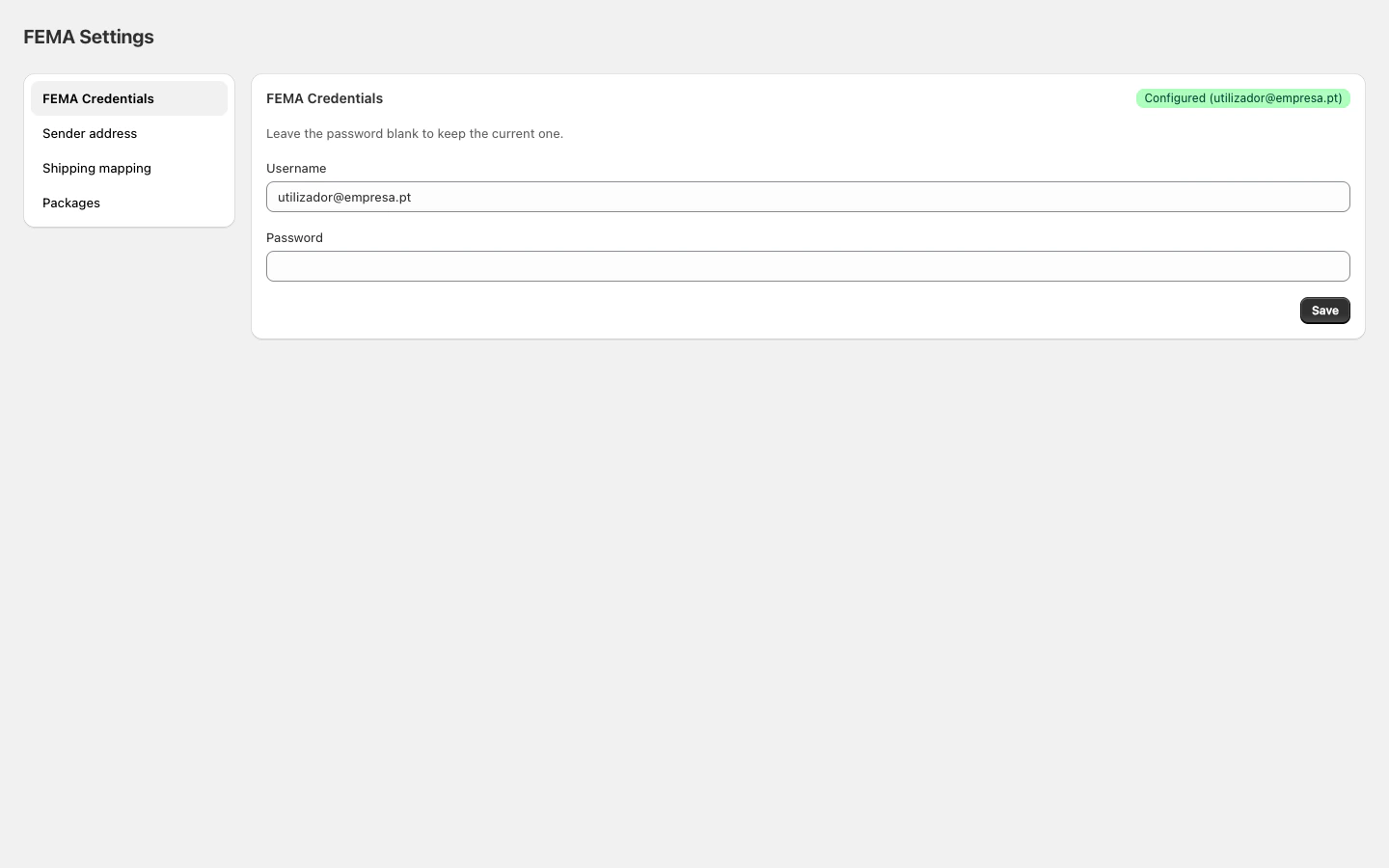
In Shopify Admin, open the FEMA app and click **Shipping mapping** in the sidebar.
 ## Label format
Choose the size of generated PDF labels:
| Format | Recommended for |
| ------ | ------------------------- |
| **A4** | Standard desktop printers |
| **A6** | Thermal label printers |
## How to configure
1. Select the desired **Label format**.
2. For each listed shipping method, choose the corresponding **FEMA service** from the dropdown.
3. Click **Save**.
Mapping uses **exact name matching**. The Shopify method name must match exactly what is configured here — no partial or fuzzy matching.
Methods set to "—" (no service selected) or methods not listed in the mapping are **ignored** — no FEMA shipment is created automatically for those orders. If no mappings are configured at all, all orders are ignored.
## Label format
Choose the size of generated PDF labels:
| Format | Recommended for |
| ------ | ------------------------- |
| **A4** | Standard desktop printers |
| **A6** | Thermal label printers |
## How to configure
1. Select the desired **Label format**.
2. For each listed shipping method, choose the corresponding **FEMA service** from the dropdown.
3. Click **Save**.
Mapping uses **exact name matching**. The Shopify method name must match exactly what is configured here — no partial or fuzzy matching.
Methods set to "—" (no service selected) or methods not listed in the mapping are **ignored** — no FEMA shipment is created automatically for those orders. If no mappings are configured at all, all orders are ignored.