
What it is
The Print FEMA labels bulk action gathers labels from multiple orders into a single PDF document, ready to print in one go.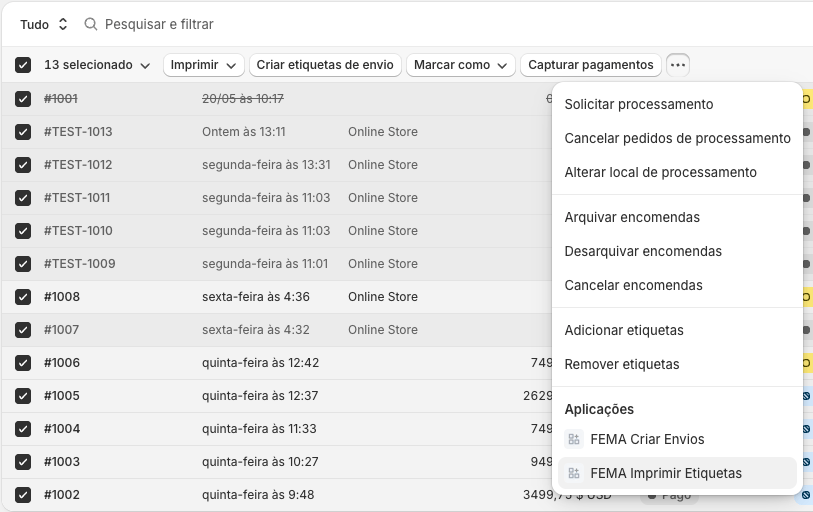
How to use
- In Shopify Admin, go to Orders.
- Select the orders whose labels you want to print.
- Click Actions > Print FEMA labels.
- A panel opens that checks which orders have a shipment created.
Labels panel
The app automatically checks which selected orders have a FEMA shipment. For each order:
For orders with Ready status, you can:
- Click Open to open the individual label in a new tab.
- Click Print all (X) to open a single PDF with all labels combined.
Print all
The Print all button generates a PDF that concatenates all ready labels. It opens in a new tab. Use the browser’s print function (Ctrl+P / Cmd+P).
Orders without a shipment are automatically excluded from the PDF. Create the missing shipments with the Create FEMA shipments action before printing.